
What Is InMail on LinkedIn? How the Credits Work and What a Message Really Costs
What is InMail on LinkedIn? How the credits work on each plan, the 90 day refund rule, what a message really costs, and when to send an email instead.


What is InMail on LinkedIn?
What is LinkedIn InMail? It is a paid message you can send to someone on LinkedIn you are not connected to. It comes with a Premium, Sales Navigator or Recruiter subscription, and each message spends a credit from your allowance.
A basic LinkedIn account can only message first degree connections. An InMail skips that rule: it lands in the recipient's LinkedIn inbox, marked as an InMail, with your name and headline attached, whether or not they have ever heard of you. That is the whole product. Everything else about it is accounting.
The accounting is where most people get lost, and it is the part that decides whether InMail is worth using. You do not pay per message in cash. You pay in credits granted monthly by your subscription, they stack up to a ceiling, and a message that gets a reply gives the credit back. Understanding those three mechanics tells you exactly how many people you can reach in a month and when you should stop reaching for InMail and send a plain email instead.
This page covers the mechanics from a prospecting position rather than a recruiting one. If you are weighing the subscription itself rather than the messaging, our breakdown of Sales Navigator pricing per seat and per lead is the better starting point. And if the answer for a given prospect turns out to be "send an email instead", the last section covers where that address comes from: Derrick does that step from its web app or a Google Sheets sidebar, and from an AI assistant over MCP or a REST API once you are on the Plus plan. Its free plan is 100 credits a month, with no card.
Three kinds of LinkedIn InMail
The word covers three different things, and only one of them is what most people mean.
- Paid InMail. The standard case: a message to someone outside your network, paid with a credit from your Premium, Sales Navigator or Recruiter allowance. Most of this page is about this one.
- Free InMail to an Open Profile. Some Premium members switch on Open Profile, and anyone can then message them without spending a credit. The section on Open Profile below shows how to spot them.
- Sponsored InMail, now called Message Ads. An ad format bought in LinkedIn Campaign Manager and paid from an advertising budget, not with InMail credits. It reaches an audience you target, not one person you picked, so it is a marketing tool rather than a one to one prospecting channel.
When a colleague says they "sent an InMail", they almost always mean the first kind. The rest of this guide uses the word that way.
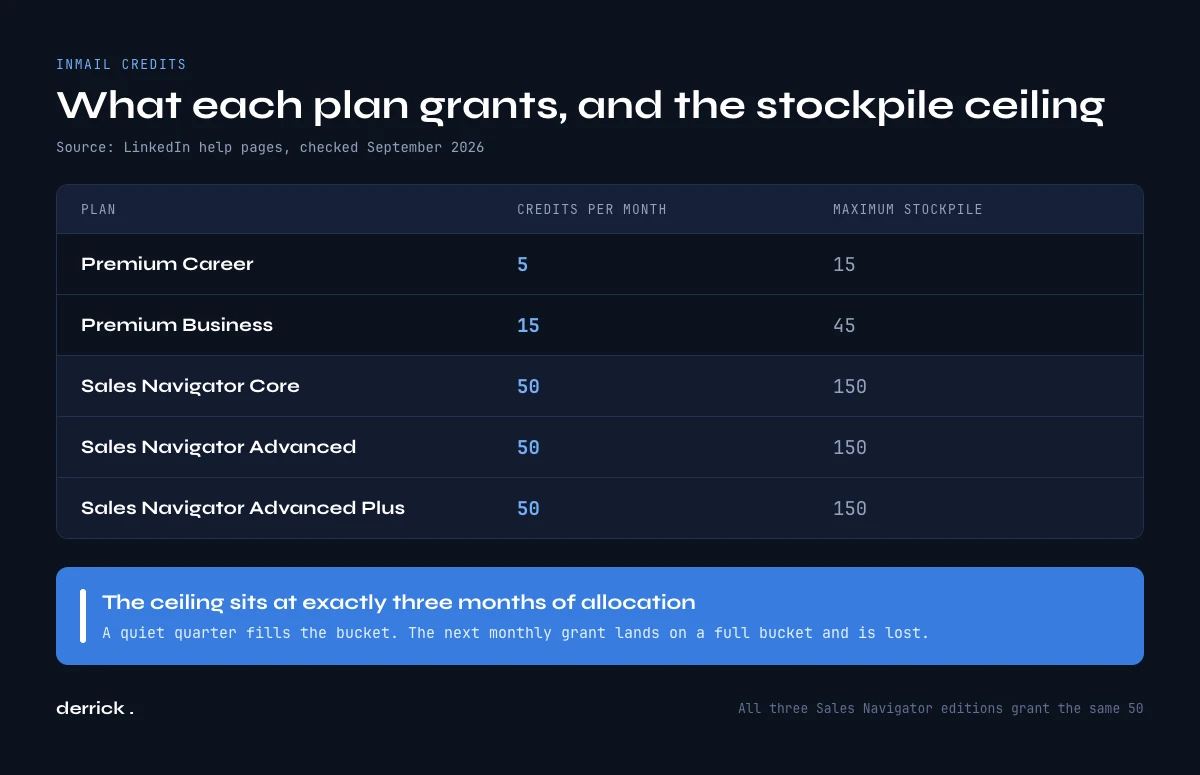
LinkedIn InMail credits: what each plan grants, and the ceiling nobody budgets for
Credits arrive on a fixed schedule and they are not interchangeable across products. LinkedIn states plainly that Premium InMail credits cannot be spent inside Sales Navigator or Recruiter: those run separate pools. Here is what each plan grants, taken from LinkedIn's InMail credits and renewal help page and its Sales Navigator equivalent, checked again on 14 October 2026.
| Plan | InMail credits per month | Maximum you can stockpile |
|---|---|---|
| Premium Career | 5 | 15 |
| Premium Business | 15 | 45 |
| Sales Navigator Core | 50 | 150 |
| Sales Navigator Advanced | 50 | 150 |
| Sales Navigator Advanced Plus | 50 | 150 |
| Recruiter and Recruiter Lite | Set by the product and your contract | Set by the product and your contract |
Two details in that table matter more than the headline numbers.
The first is that all three Sales Navigator editions grant the same 50. Paying for Advanced buys you better search, team features and CRM writeback, not more messages. If your reason for upgrading was reach, the upgrade does not deliver it.
Worth noting before you weigh an upgrade: the 30-day trial grants the same 50 a month, so you can measure your own reply rate before paying anything. Our notes on running the Sales Navigator free trial properly cover what to set up on day one.
The second is the stockpile ceiling. Unused credits roll from month to month, which sounds generous until you notice the cap sits at exactly three months of allocation. A Sales Navigator seat that goes unused for a quarter is sitting on 150 credits, and on the first day of month four it grants 50 more into a bucket that is already full. Those are gone. The ceiling turns a quiet quarter into a real loss, and it is the single most common way teams waste the messaging they already paid for.
Credits renew on the first day of your billing cycle, not on the first of the calendar month, so a seat that started on the 22nd refreshes on the 22nd.
Two more rules from LinkedIn's help pages decide what you can plan on. First, you cannot buy extra LinkedIn InMail credits on Premium or Sales Navigator: LinkedIn's page on sending an InMail says additional credits cannot be purchased outside the monthly allotment. Recruiter Lite is the exception, since LinkedIn lets Recruiter Lite customers buy credit packs in their product settings. Second, can someone turn off InMails? Yes. A member can choose not to receive InMail in their messaging preferences, and then nobody can send them one, whatever the plan. Your reachable list is a little shorter than your search results, and no budget fixes that.
Recruiter runs a third pool again, with its own allocation and its own rules, which is why a recruiting seat and a sales seat in the same company cannot lend each other credits. If your team holds both, treat them as two separate budgets rather than one. Recruiter also works differently in the inbox: LinkedIn's Recruiter InMail FAQ shows each message as accepted, declined or pending, and every message in a thread, follow-ups included, uses a credit upfront.
The 90 day rule: why a reply gives your InMail credit back
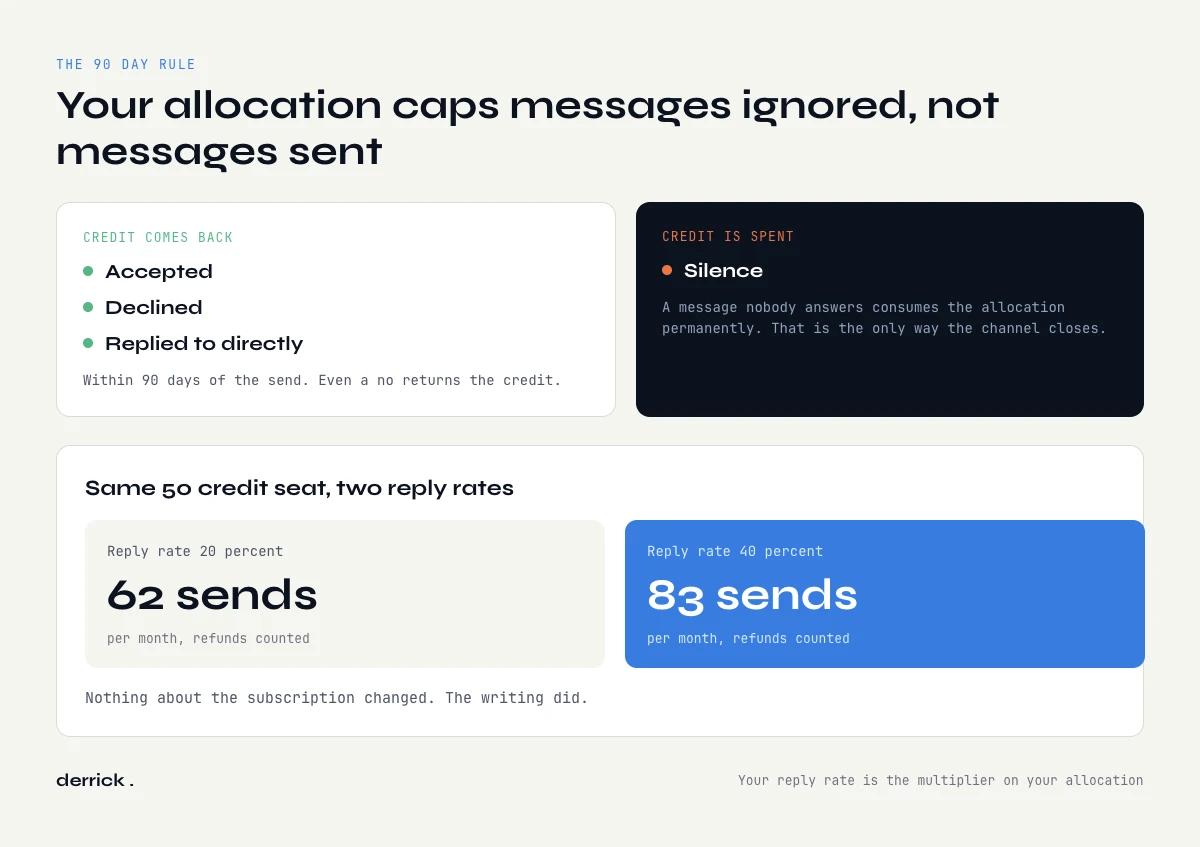
This is the mechanic that changes everything and the one the credit table hides. LinkedIn credits you back for every InMail that is accepted, declined, or responded to directly within 90 days of being sent. A reply, even a no, returns the credit. Silence does not.
Read that again as a sales person rather than as a billing clerk. Your monthly allocation is not a cap on messages sent. It is a cap on messages ignored. If every InMail you send gets a reply, you can send forever on five credits. If nothing ever replies, five is five.
So the real question is not how many credits your plan grants. It is what your reply rate is, because your reply rate is the multiplier on your allocation. A 50 credit seat at a 20 percent reply rate buys about 62 sends a month. The same seat at a 40 percent reply rate buys about 83. Nothing about the subscription changed. The writing did.
This is also why the advice to blast InMails is worse than useless. Poor messages do not just fail, they consume the allocation permanently, and the allocation is the only thing standing between you and a channel you cannot use at all next month.
What is an InMail on LinkedIn worth, once refunds are counted?
Below is the calculation, run on your own plan and your own reply rate. It answers the question the credit table cannot: how many people can you actually reach this month, and where does that leave the rest of your list.
InMail credit calculator
Your plan sets the allocation. Your reply rate sets how far it stretches, because replies are credited back.
Pick a plan and a reply rate.
Sends are calculated as allocation divided by the share of messages that stay unanswered, because an answered InMail returns its credit within 90 days. Reply rate here means any reply, including a decline.
For reference, without touching the calculator: a Sales Navigator seat at a 20 percent reply rate sends about 62 InMails a month, and reaching those same 62 people by email instead costs about 310 Derrick credits, since Email Finder bills 5 credits per address found on a paid plan starting at 20 euros a month.
Run it at a realistic reply rate and the shape of the problem shows up immediately. Even a Sales Navigator seat performing well tops out somewhere in the sixties. That is a fine number for named accounts. It is not a number you can build a pipeline target on, which is why the channel decision below matters more than any subject line advice.
Is LinkedIn InMail worth it?
For a short list of named accounts, yes. A Sales Navigator seat gives you roughly sixty well written messages a month, and each one carries your profile and the LinkedIn context with it. For a segment of several hundred people, no: the allocation runs out in the first week and the rest of the list waits a month. You will see reply rates quoted for InMail all over the web, usually without a source. Use your own: send twenty, count the replies, and put that number in the calculator above.
Open Profile: the InMail you can send without a credit
There is a lane around the allocation, and it is underused because it is invisible unless you know to look. LinkedIn lets Premium members switch on Open Profile, which allows anyone to message them directly, free, without an InMail credit being spent. If your prospect has it enabled, the message costs you nothing.
The tell is in the message box itself. When you open a conversation with an Open Profile member, LinkedIn does not warn you that a credit will be consumed. When it is a normal InMail, it does. Check before you send, every time, and you will find a meaningful slice of any senior list is reachable for free.
The catch is that the toggle belongs to the recipient, not to you, and only Premium members can turn it on. There is no filter for it in search and no way to build a list of Open Profile members up front. It is a per prospect check, done at the moment you write, which makes it a habit rather than a strategy. Worth the two seconds all the same. Our guide to building precise Sales Navigator searches covers the filters that do exist and how far they get you.
LinkedIn InMail vs message: what is InMail on LinkedIn next to a regular message?
A LinkedIn message and a LinkedIn InMail land in the same inbox, but they are not the same thing. A regular message goes to a first degree connection, someone who already accepted you. It is free, it needs no credit and no paid plan, and you can write back and forth as long as you like.
An InMail goes to someone outside your network, at second or third degree. It needs a Premium, Sales Navigator or Recruiter seat, it spends a credit, and the recipient sees it labeled as an InMail. They can accept it, decline it, ignore it, or have switched InMail off entirely in their settings.
So the question in the LinkedIn InMail vs message debate is never which one is better. It is whether the person is already a connection. If they are, a message is free and an InMail would waste a credit. If they are not, you choose between an InMail now, a connection request and a wait, or an email. The table below puts the four side by side.
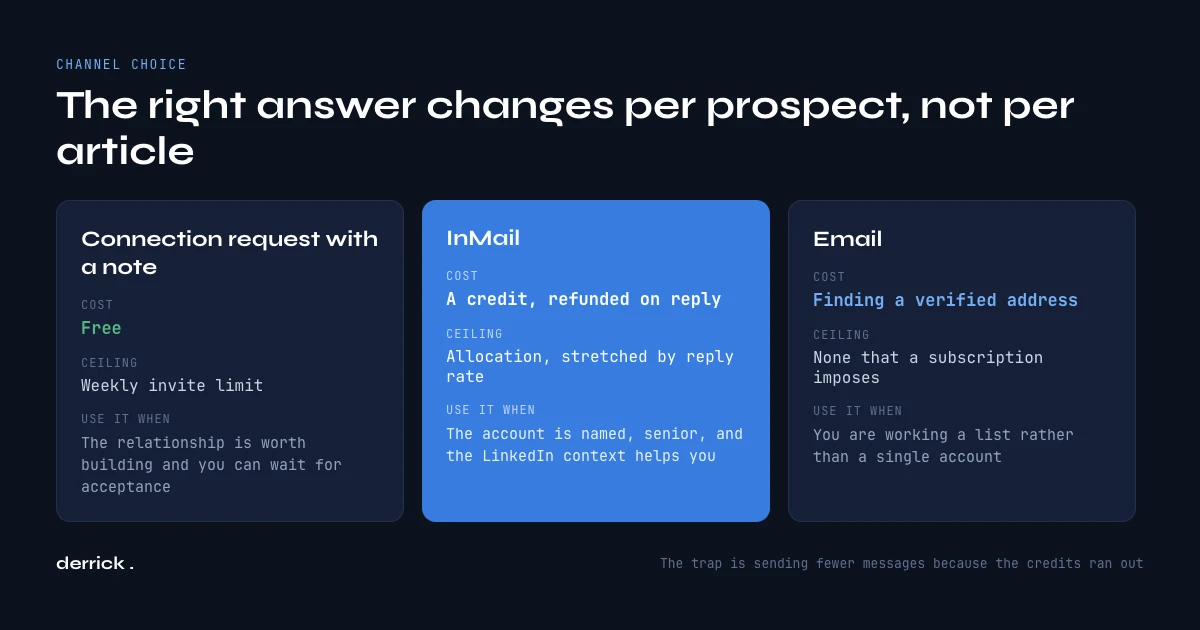
What is InMail on LinkedIn good for, next to a connection request or an email?
Most articles on this subject argue about which channel is best. That framing is wrong, because these channels have different costs and different ceilings, so the right answer changes per prospect rather than per person writing the article.
| Channel | What it costs | Monthly ceiling | Use it when |
|---|---|---|---|
| LinkedIn message | Free, no credit | No credit limit, first degree connections only | The person is already a connection |
| Connection request with a note | Free | Weekly invite limit | The relationship is worth building and you can wait for acceptance |
| LinkedIn InMail | A credit, refunded on reply | Your allocation stretched by your reply rate | The account is named, senior, and the LinkedIn context helps you |
| The cost of finding a verified address | None that a subscription imposes | You are working a list rather than an account |
The rule that falls out of it is short. Spend an InMail when the LinkedIn context is doing work for you: a mutual connection, a recent post you can reference, a role change that only shows up on the profile. Send an email when the list is longer than your allocation, which is almost always the case the moment you move from named accounts to a segment.
The trap is doing neither and simply sending fewer messages because the credits ran out. That is what happens by default, and it is why teams with a Sales Navigator seat often have worse coverage than teams without one. The seat quietly redefined their monthly target as 50.
How to send an InMail on LinkedIn, step by step
The mechanics are the easy part. From a profile:
- Open the profile of the member you want to reach.
- Click Message, or open the More menu on their introduction section and choose Message followed by their name. On a non connection with a Premium or Sales Navigator seat, this opens the InMail composer rather than a normal message box.
- Read what the composer says about credits before you type. If it warns you a credit will be used, it is an InMail. If it does not, the member has Open Profile on and the message is free.
- Write the subject line. It is optional and it is the single biggest lever on whether the message is opened.
- Write the body, then send.
From Sales Navigator the flow is the same but it starts from the lead page or the saved lead list, and the message is logged against the lead so your activity history stays intact. If you push that activity into a CRM, the Sales Navigator CRM integration is what carries it across.
One constraint to plan around: a follow-up is never free. In Sales Navigator, LinkedIn's credits page says a second InMail to the same person before they answer uses another credit, and in Recruiter every message, follow-ups included, takes a credit upfront. Chasing silence costs as much as the first message did. That asymmetry alone is a strong argument for keeping email as the channel where sequences live.
What to write in 2,000 characters
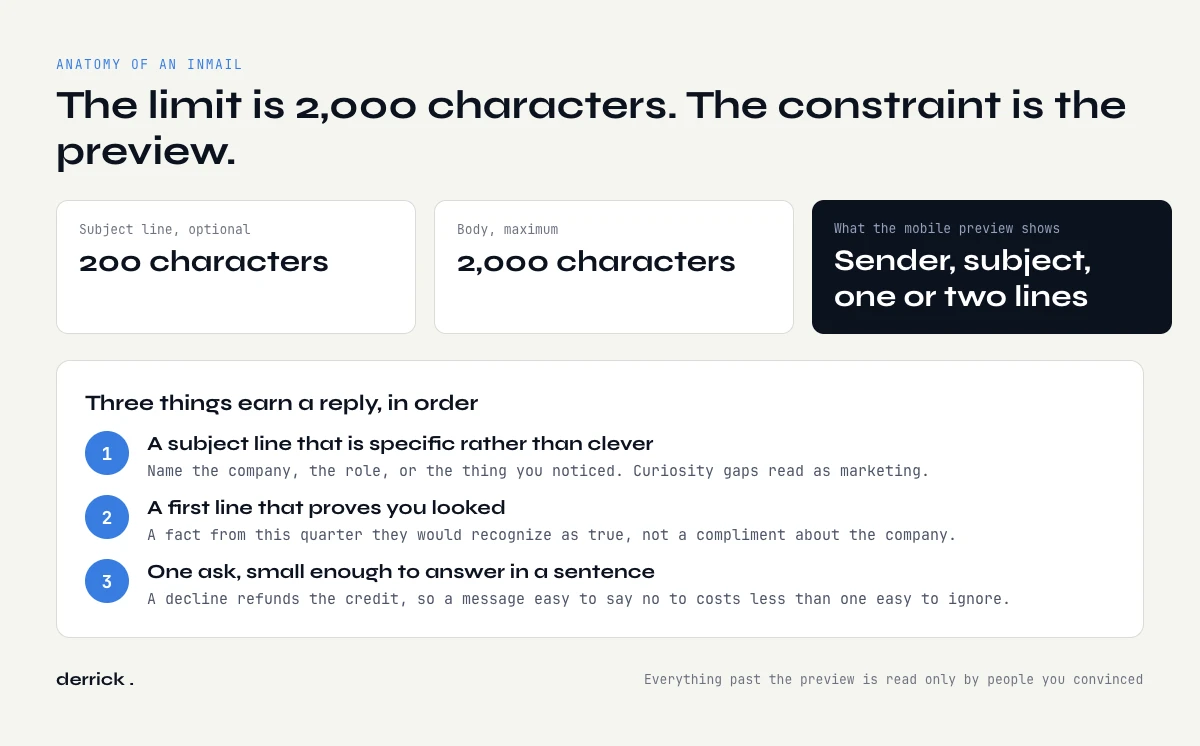
LinkedIn's InMail FAQ and its guide to sending an InMail allow up to 200 characters in the optional subject line and up to 2,000 characters in the body for Premium and Sales Navigator, checked on 14 October 2026. Recruiter has its own limit: 200 characters of subject and 1,900 of body, per the Recruiter InMail FAQ. So the two figures you will read elsewhere are both right. They belong to different products.
You should not use anywhere near 2,000. The constraint that matters is not the limit, it is the preview: on mobile, the recipient sees the sender, the subject and the first line or two before deciding. Everything after that is read only by people you have already convinced.
Three things earn a reply, in order:
- A subject line that is specific rather than clever. Name the company, the role, or the thing you noticed. Curiosity gaps read as marketing and get archived.
- A first line that proves you looked. Not a compliment about the company. A fact from this quarter that they would recognize as true and slightly surprising to see in an inbox.
- One ask, small enough to answer in a sentence. Remember that a decline refunds your credit. A message easy to say no to is cheaper than a message easy to ignore, which is a genuinely strange incentive and one worth exploiting.
Here is what the three rules look like in one sales InMail. The company and the person are made up.
Subject: Your new Lyon office and the three SDR openings
Hi Claire, I saw Acme opened a Lyon office in September and has posted three SDR roles since. Teams in that phase usually spend their first quarter building lead lists by hand before anyone sends a message. We help sales teams turn a Sales Navigator search into a contact list with work emails, without the copy and paste. Would a two minute example built on your own target accounts be useful? If the timing is wrong, a quick no is completely fine.
The subject names something real. The first line is a fact Claire can check in ten seconds. There is one ask, and it is easy to refuse, which is fine by you: a decline returns your credit. It runs well under 600 characters, and the preview on her phone already shows the part that matters.
Length discipline is easier to hold when the personalization comes from data rather than from reading profiles one at a time. That is the part that scales, and it is the same input whether the message ends up as an InMail or as an email.
Where the email address comes from when you route around InMail
The routing rule above only works if the email lane is actually open. For most teams it is not, because nobody built the step that turns a LinkedIn list into contactable addresses, so InMail stays the default by inertia rather than by choice.
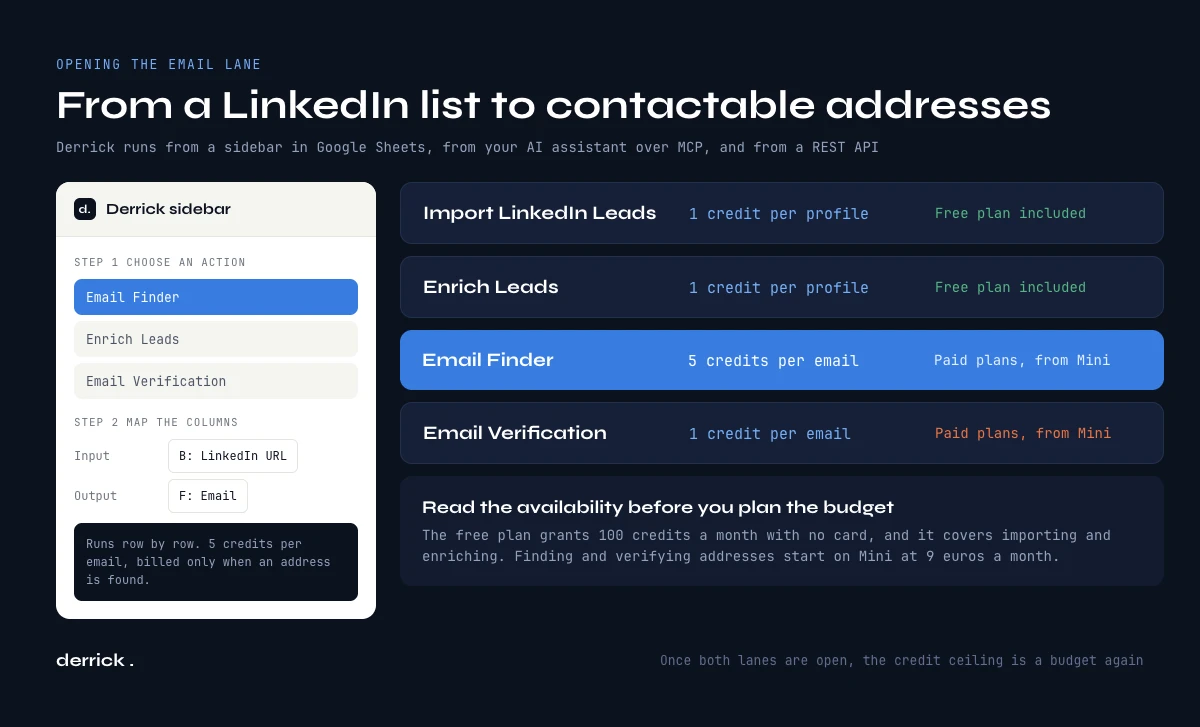
That step is short. Derrick runs in its web app, with nothing to install, and you can also use it in a Google Sheets sidebar, from your AI assistant over MCP, or through a REST API, so it fits wherever your list already lives.
- Import LinkedIn Leads pulls a Sales Navigator search into a list in the app, or into a sheet, at 1 credit per profile, available on the free plan.
- Enrich Leads fills in role, company and profile data at 1 credit per profile, also on the free plan.
- Email Finder returns a verified address at 5 credits per email, billed only when an address is found. Paid plans only, from Standard.
- Email Verification checks an address you already hold at 1 credit per email. Paid plans only, from Standard.
Read the availability carefully, because the two halves of that list are not on the same plan. Importing and enriching profiles runs on the free plan, which is 100 credits a month with no card. Both steps cost 1 credit per profile, so those 100 credits cover fifty profiles imported and enriched, or a hundred if you only need one of the two steps. Email Finder and Email Verification are paid features: they start on Standard at 20 euros a month, and the Plus plan at 47.50 euros a month is where the API and the MCP connection unlock.
The point is not that email replaces InMail. It is that once both lanes are open, the credit ceiling stops being a business constraint and goes back to being what it should be: a budget you spend on the accounts that deserve it. Open the Derrick web app for free and run the first fifty profiles through import and enrichment to see where your own list splits, then open the email lane on a paid plan once you know how big the split is.
We publish one edition of the Derrick newsletter every two weeks, with the enrichment and outbound work we are actually running, including the numbers that did not work. The signup form on this page takes an email address and nothing else, and it is more useful than another list of templates if you would rather see what a real month of outreach data looks like.
What is InMail on LinkedIn: the seven things to remember
- LinkedIn InMail is a paid message to a non connection, paid in credits granted by your subscription rather than per message in cash. It is not the same as a regular message, which is free between connections, nor as Sponsored InMail, which is an ad format.
- Premium Career grants 5 a month, Premium Business 15, and every Sales Navigator edition 50, including Advanced and Advanced Plus.
- Unused credits roll over to a ceiling of three months of allocation, so a quiet quarter destroys the messaging you paid for.
- Any InMail accepted, declined or answered within 90 days is credited back, which makes your reply rate the real multiplier on your allocation.
- Open Profile members can be messaged for free, and the composer tells you which case you are in before you send.
- The limits are 200 characters of subject and 2,000 of body on Premium and Sales Navigator, 1,900 of body in Recruiter, and you should be nowhere near either.
- Spend an InMail when the LinkedIn context helps you, and route the rest of the list to email, where no subscription sets your monthly ceiling.
Frequently asked questions
What is InMail on LinkedIn?
How many InMail credits do you get per month?
Do InMail credits roll over?
Do you get an InMail credit back if someone replies?
Can you send an InMail for free?
What is the InMail character limit?
Is InMail better than cold email?
Does the sender know when an InMail has been read?
Keep reading
Continue exploring this cluster


The State of LinkedIn Sales Navigator Prospecting 2026: Benchmark Report
Read →

How to Use LinkedIn Sales Navigator for B2B Prospecting
Read →

How to Get Sales Navigator for Free on LinkedIn?
Read →

How to do a Boolean Search on LinkedIn Sales Navigator: Tutorial, Tips, Tricks
Read →